Computer Water Damage
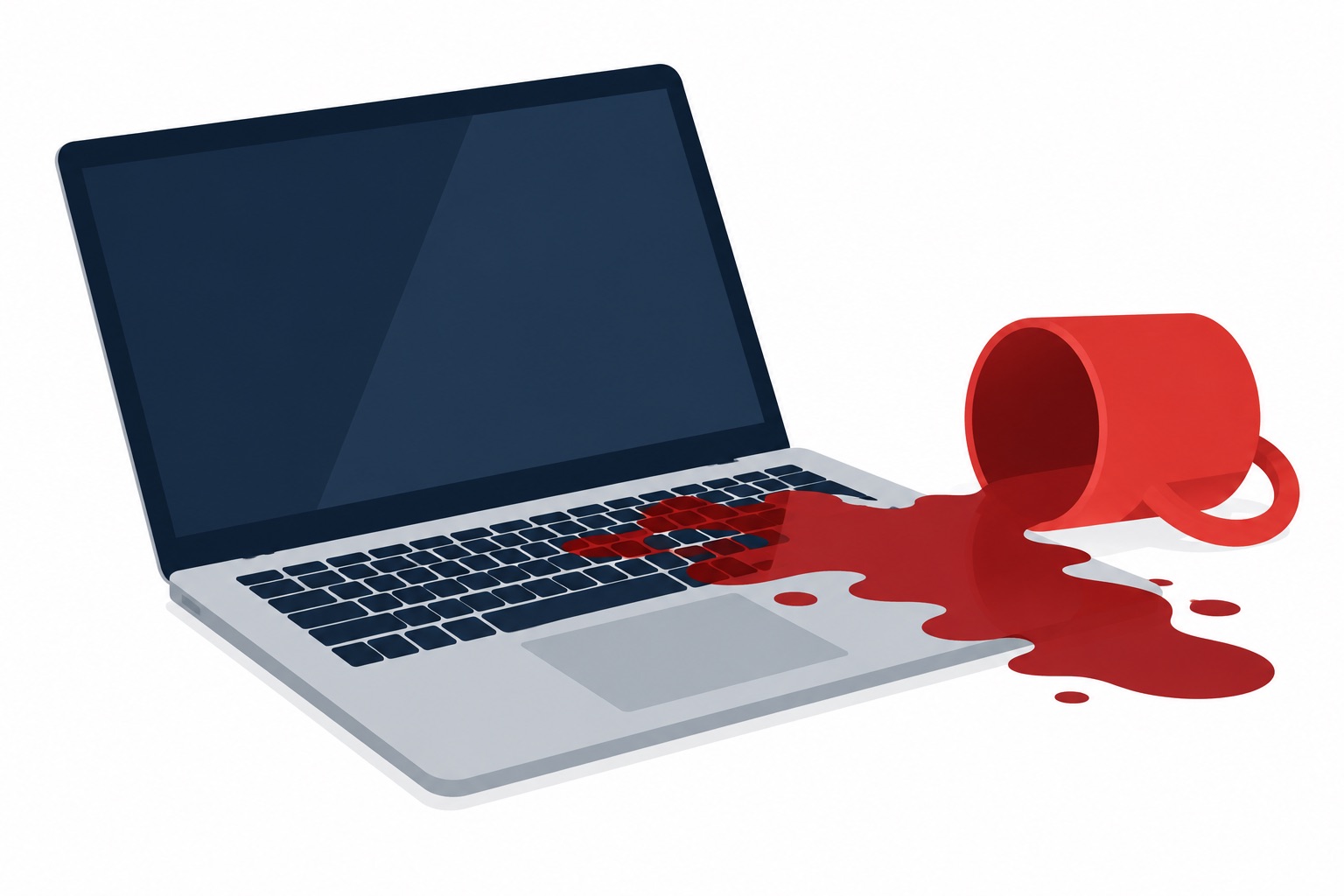
You poured yourself a cold refreshing glass of lemonade and placed your glass on your desk near your laptop, and you
go to pick up a book, and before you know it, you accidentally knocked your glass over on top of your laptop.
Perhaps you were cleaning your laptop and you accidentally spilled liquid cleaner on your laptop keyboard or down
into your desktop tower. Now what?
Computer water damage can be serious, depending on the quantity of liquid that was spilled, whether your laptop or
desktop was powered on, and the time that the liquid was left on your laptop or desktop before it was soaked up and
left to dry. However, don’t panic, I will give you some tips about the next steps to take to best prevent any
damage to your computer.
Prevention Is Always Best, but Not Always Possible
Prevention is always preferred to reaction, and this is especially true with computer water damage. One thing to give
you consolation, however, is that water, in its pure form, such as distilled or deionized, is not generally capable
of holding adequate conductive properties, and this is because of the makeup of water, itself. Though non-distilled
water or liquids containing non-distilled water (e.g., from your tap) do contain adequate dissolved ions, and as
such, are quite capable of causing damage to electrical components (Pbuteau, 2017). In acting to prevent computer
water damage or liquid damage from occurring in the first place, it is important to take some precautionary
steps.
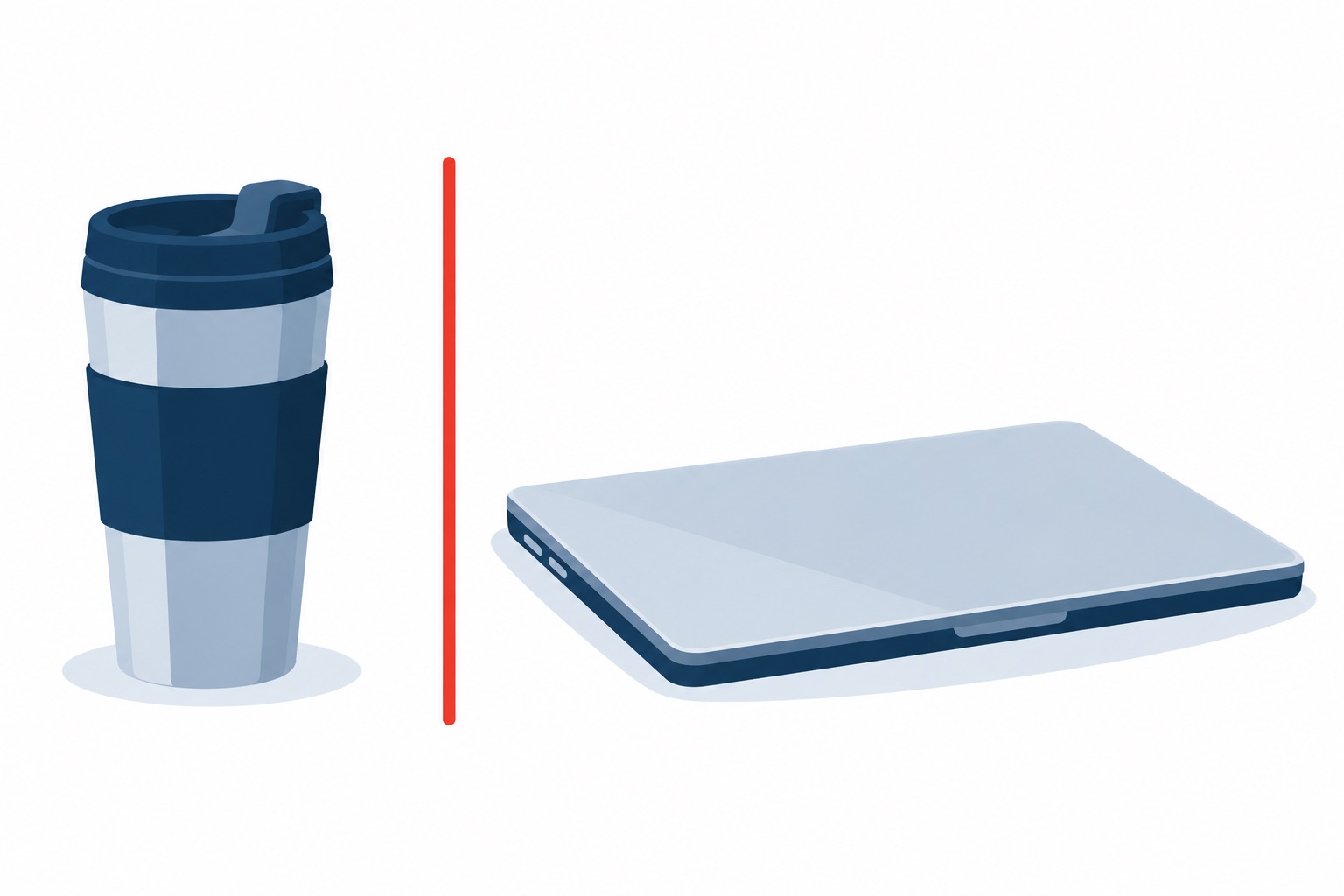
Do not keep open beverages near or on your workspace or in your lap, where they can be knocked over (GW Information
Technology, 2018). Rather, keep a secured lid on your beverages, though, if you must use an open container, keep the
container far enough away from your laptop that if it were to spill, you would have plenty of time to avoid the
liquid coming into contact with your computer.
Secondly, if you use a laptop carry-on bag, do not put liquid containers in the same bag (GW Information Technology,
2018), to help avoid the risk of the lid coming loose and leaking liquid onto/into your laptop. We also recommend
that you obtain an additional insulated laptop cover to keep your laptop in, alongside the protection that a
carry-on laptop bag offers.
If your laptop or desktop does suffer water damage, and there is no hope of repair, it is important to understand the
importance of data recovery. Some steps that you should take as an insurance
option is to back up your data on separate physical medium devices, such as flash drives or an external hard drive.
Secondly, backing up your data to a cloud storage system is also highly recommended, as that way, you have two
backup methods in the event that your computer becomes inoperable following water damage, so that when you receive
repairs or complete repairs yourself, you can simply download or transfer your data back into your computer.
Immediate Steps to Take & Looking Forward
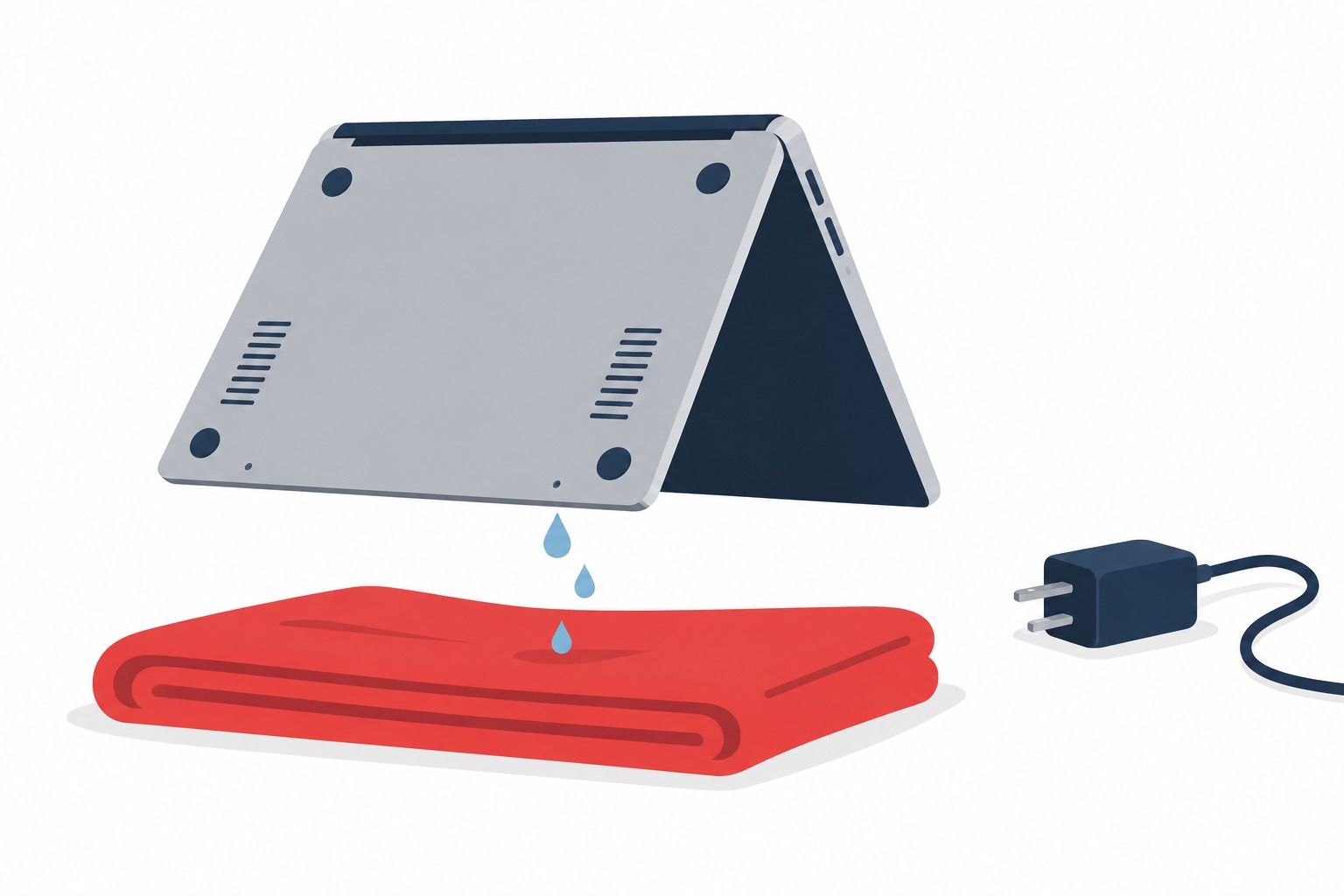
Immediately following liquid contact with your laptop, be sure to immediately power down your computer, unplug the
computer from the AC wall outlet (if it is plugged in), and remove any peripheral devices such as flash drives or
USB devices (such as a wireless mouse dongle). If using a laptop, remove the battery if you can (GW Information
Technology, 2018). One very important thing to keep in mind is do not, under any circumstances, attempt to power
your laptop back on to see if it works. Time is of the essence in this situation, and the faster you power down your
laptop, the less of a chance that the liquid will cause irreversible damage, and this is especially true if you
remove the battery (Pbuteau, 2017).
Next, using an absorbent cloth such as a microfiber cloth, wipe down your laptop or desktop computer, taking care to
insert the cloth into crevices to soak up any liquid. If you removed the battery, you should also soak up any liquid
that managed to get beneath the battery. Once you have taken the initial step of wiping your computer down and
soaking up excess liquid, if it is a laptop, flip the computer upside down (this will help to prevent gravity from
drawing the water further down into the components). Finally, allow your laptop or desktop computer to completely
dry for three days before attempting to power it back on; again, during this time, make sure the laptop is upside
down. Following a three-day period, check once more to see if any liquid remains before attempting to power your
computer back on (GW Information Technology, 2018).
Avoiding Water Damage & When Cleaning
Like most things, they require cleaning from time to time. Here are some tips to avoid liquid damage when cleaning
your laptop or desktop.
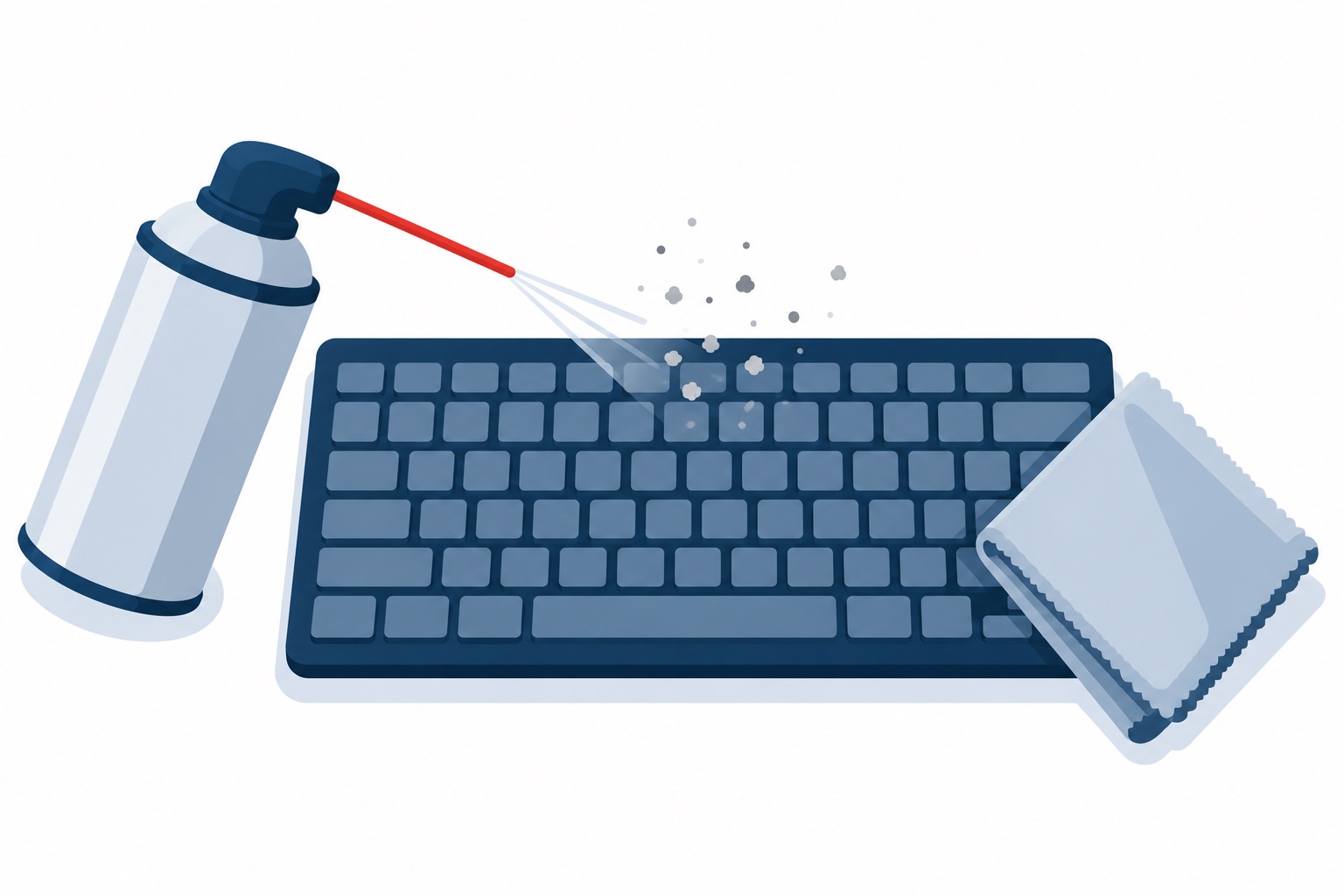
For desktops, one of the first things you might clean is the keyboard. Make sure your computer is powered down, and
unplug your keyboard (if a wired USB or PS/2 connection), then flip the keyboard upside down and gently shake it to
loosen up any debris like crumbs that may have fallen in between the key spaces. Next, use compressed air and gently
use a left-to-right motion while aiming the nozzle in between the keys to dislodge any debris that was not removed
during the initial shaking step. If you need to clean your keyboard, whether a laptop or desktop keyboard of grime
or residue, do not pour or spray liquid cleaner directly on the keyboard. Instead, lightly moisten a paper towel
with isopropyl alcohol (the higher percentage of alcohol, the better, because of a faster evaporation time), and
proceed to gently wipe down the keyboard. Once the keyboard is completely dry, you may reconnect it (if a desktop)
before powering your computer back on.
If you need to wipe down your computer monitor, whether a laptop or desktop computer, first, turn off your computer.
Following, moisten a disposable microfiber cloth (decreases the likelihood of micro scratches in the screen) with a
glass cleaner and proceed to gently wipe the screen from a left-to-right motion, or an up-and-down motion, until the
monitor is clean. Again, allow the monitor to completely dry before powering your computer on.
When you need aid with computer water damage, here at Desert Computer Agents, we have
Agents on staff that are CompTIA A+ and Network+ certified for all your computer repair
needs, and this includes physical repairs! We are capable of replacing affected hardware components of your computer
if they are beyond repair so that we can get you back up and running. Just give us a call at
(760) 760-4096.
Related Pages
Computer repair •
Data recovery •
Computer repair near me •
Computer support
Sources
GCFGlobal.org. (n.d.). Computer basics: Keeping your computer clean. Retrieved October 20, 2022, from
https://edu.gcfglobal.org/en/computerbasics/keeping-your-computer-clean/1/
GW Information Technology. (2018). Laptop liquid damage: Best practices. Retrieved October 20, 2022, from
https://it.gwu.edu/laptop-liquid-damage-best-practices
Pbuteau. (2017). Water damage: How to prevent it, and what to do if it happens. Retrieved October 20, 2022,
from
https://blogs.umass.edu/Techbytes/2017/08/02/water-damage-how-to-prevent-it-and-what-to-do-if-it-happens/