
Computer Repair Near Me
If your computer will not turn on, has become unusually slow, keeps crashing, or refuses to open a program, you are
probably trying to answer one question first: is this something you can fix yourself, or does the computer actually need
repair?
Many computer problems can be narrowed down with a few basic checks. Others involve hardware failure, overheating,
storage problems, or damaged components where continuing to troubleshoot can create additional problems. The symptoms
are usually the best place to start.
At Desert Computer Agents we have the best of both worlds where we can schedule an in-person
appointment or a remote session and you’ll always have a local technician to help you out. We focus on providing
affordable, quality technical service to help you get your computer back up and running. Call us at
(760) 760-4096.
Problems with Hardware
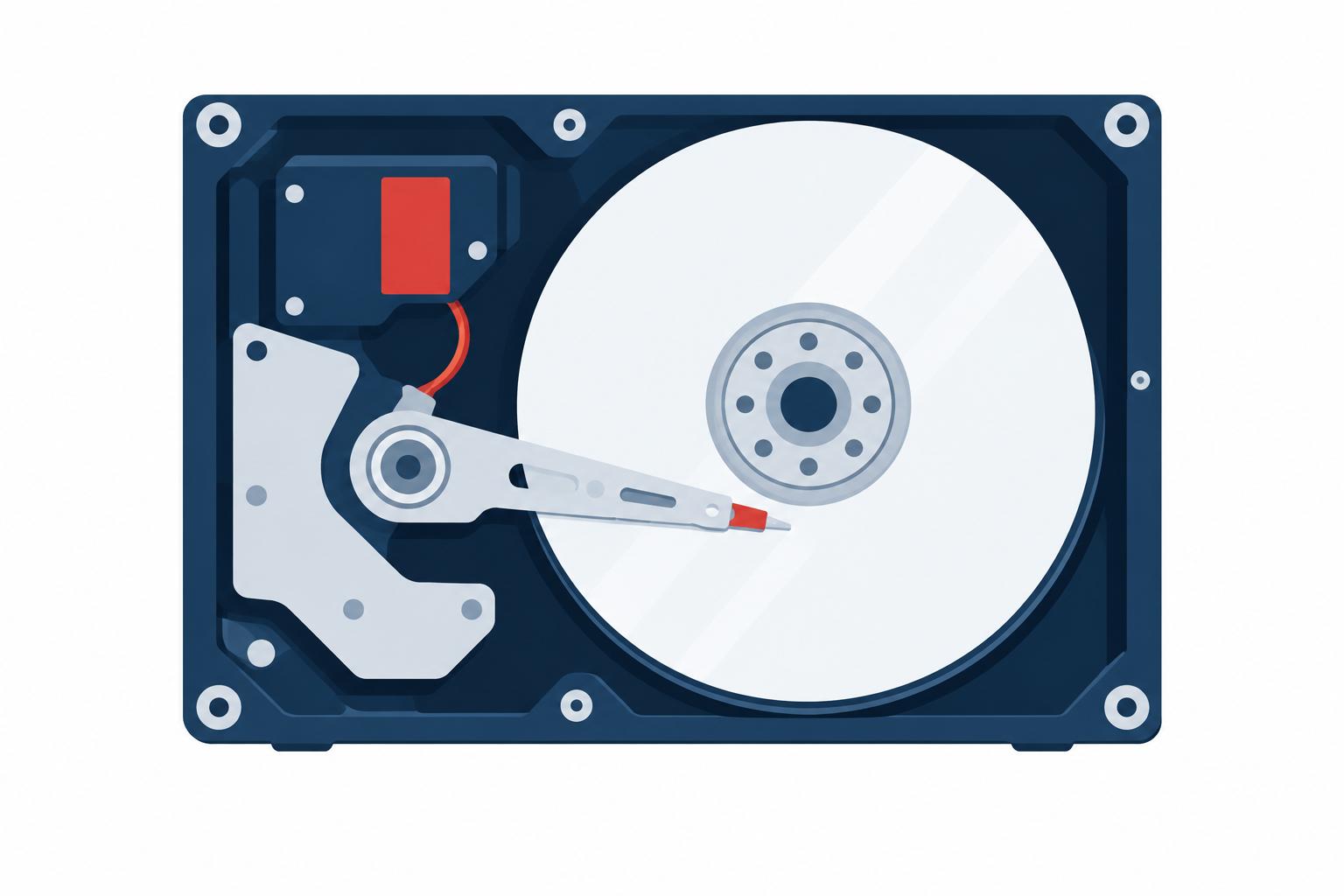
Hardware problems are quite varied, and if one component starts to malfunction or fails, there is a high likelihood that
your computer will not even power on. If the computer does manage to power on, your experience will not be the same as a
fully functioning computer. In this way, a computer is a lot like a car. If you are overdue for an oil change, your
engine can suffer from problems like overheating, a loss of power, or even damage to the engine that can lead to an
expensive overhaul.
Have you ever attempted on your computer and it fails to boot up, no matter whether you unplugged and plugged the
computer back in, or kept pressing the power button? In such a case scenario, the failure for your computer to power on
can likely be due to a hardware problem, though, if you have a virus that overwrote the BIOS, your computer will not boot
up no matter how much you try to get it to do so. In this section of the article, we will go over some common
hardware-related computer problems that could be causing your computer to not turn on, or perform inefficiently.
Power Supply Unit
One of the first things to take a look at, if you are using a desktop computer, is the Power Supply Unit, or PSU. The
PSU, as the name implies, provides power to your computer. If there is no power, there is no powering up. If you are
using a laptop, check the battery. If your laptop’s battery is entirely depleted (can no longer charge and hold a
charge), did you know that you can use the AC power? That means you can still turn your laptop on if you plug in the
charger and plug the charger into an electrical outlet. If your PSU or battery are no longer working, in this case,
especially with a desktop computer, they will need to be replaced.
Ventilation
Aside from the PSU, is your computer well-ventilated? If you are using a desktop PC or laptop, are your vents clogged
with dust? Are the computer fans working? The Central Processing Unit’s (CPU’s) fan is especially important. This fan
keeps the CPU at operational temperature.
Thermal Paste
Another mention with the CPU to consider, is the thermal paste. Thermal paste is applied on top of the CPU, before the
heatsink (what appears to be a slotted cube) and/or CPU fan is affixed on top. If the thermal paste is not properly
applied, needs a re-application, or does not have any coating of thermal paste, not only will the BIOS kick in and power
the PC off (a safety mechanism), but you run the risk of damaging the CPU. For a laptop, the CPU fan will, over time,
wear out as well; typically, the bearings in laptop fans will last anywhere from three to five years or more, depending
on the fan brand/vendor.
Cable Management
Are there any loose cables? Loose cables will generally apply to desktop computers. You can check to see if all cables
are connected snugly, such as the power cable to the PSU, but also internal cables. It is imperative when you are
investigating the inside of your PC that you make sure that the computer is not only off, but that it is unplugged from
any power source.
RAM
RAM, or Random Access Memory sticks is another consideration to be made. If the RAM sticks are improperly inserted into
the RAM module slot, there will be issues with launching programs, for one. However, if RAM is incorrectly installed or
is misaligned in the modules, you likely will not be able to boot into the operating system. The reason for this is
because RAM holds active OS components and program data which are loaded into RAM while the system is running. When a
program is launched, the program instructions are sent to the RAM, which then launches the program’s data from the
HDD/SSD (Cambridge GCSE Computing Online).
If you look for a computer repair shop near me, you can have a technician examine (and test) your RAM if you are not
comfortable doing so. Observing the RAM sticks, to determine if they are properly inserted, is something you can do
yourself, though this is easier with a desktop. With a desktop, you simply need to open the case (after you have turned
the power off and unplugged the computer) and look at the RAM.
Is the RAM firmly inserted into the RAM module? Gently press down on the RAM until you hear a click to double check. For
those who have a laptop computer, it is often best for a trained computer repair technician to open the laptop and
examine the RAM, unless you are knowledgeable with opening a laptop computer and examining the RAM for yourself.
HDD
A harddrive, or HDD, that experiences a mechanical failure may also be cause of a computer not booting up. While many
computers in the modern era make use of SSDs, or Solid State Drives, which are a form of flash memory, there is often
still the inclusion of a HDD. With that said, often, the operating system will be installed on the SSD for faster boot
times, and SSDs are designed to last for many years due to the fact there are no moving mechanical parts.
If the computer you are using does not have a SSD and only a HDD, or if there is a SSD and the operating system is
installed on the HDD and the HDD is corrupted or has failed, this can be the cause of the computer failing to boot into
the operating system.
When you are looking for computer repair shops near me, you can find a replacement HDD, if the HDD has failed. If the HDD
has corrupted sectors, you may be able to fix the problem by following these steps:
- Hold down the Windows key and ‘R’ at the same time. This will open the ‘Run’ dialog box.
- Type in, without quotations, ‘chkdsk /r’ (Singh, 2022). This command will scan the HDD to check for bad sectors, and
will attempt to repair the bad sectors. However, if your drive is mechanically failing and the files matter,
preserving the data comes before aggressive repair attempts. If you suspect mechanical drive failure, stop
attempting to write data to the drive or performing a scan. Give us a call at
(760) 760-4096 and we will help you with your failing hard drive.
Problems with Software

When you encounter an issue with software, the most common problem is a slowdown of the program you are using. However,
there are many other issues that can arise with software. Some additional problems can include a program that will not
start or the inability to install a program. This section will provide information on some common problems with software
and how to fix them.
Program Won’t Start
For a program that will not start, or launch, the issue could be as simple as running the program in compatibility mode.
Windows can run older programs in a compatible Windows shell. To run a program in compatibility mode:
- Right-click on the program you want to run. This will open a submenu.
- Look for the option ‘Properties,’ and click on it.
- In the dialog that opens, you will see a tab labeled ‘Compatibility’. Click on this tab.
- Choose the option ‘Run compatibility troubleshooter’. Windows will examine the program to determine what the most
compatible Windows shell is, and will recommend that you select the applicable option (Microsoft Support,
n.d.-c).
If, after choosing a compatibility option, the program still will not launch, you can try to repair the program.
Repairing the program will replace missing associative components that the program needs to run. This can include .DLL
files or other vital program code. To repair the program that will not launch, perform the following steps:
- Click on the Windows ‘Start’ icon, then ‘Settings,’ ‘Apps and features’.
- Look through the list of programs or search for the program in the search box located at the top right of the ‘Apps
and features’ dialog box.
- Click on the option labeled ‘Advanced options,’ and then select ‘Repair’. Windows will then attempt to repair the
program. If the ‘Advanced options’ link is not available, you can click on ‘Reset,’ instead (Microsoft Support,
n.d.-c). Windows will attempt to reset the program to its initial state.
Program Will Not Install
A program might not install for many different reasons. Often, the reason a program will not install is because there are
corrupted registry keys, the software is not compatible with Windows, or the program is already installed. Typically, an
error dialog box will appear with information on why the program will not install, and this error will sometimes be
accompanied with an alphanumeric code. You can search this alphanumeric code using your favorite search engine, or you
can use Windows’ Program Install and Uninstall troubleshooter to run diagnostics.
- Download Microsoft Windows’ Program Install and Uninstall troubleshooter from
here.
- Click on ‘Run’ or ‘Open’ when the file is downloading, or has finished downloading (Microsoft, n.d.). The program
troubleshooter will run and analyze the barriers present, leading to the software not installing.
Common areas that the Install and Uninstall troubleshooter will address includes corrupt registry keys, either on 64-bit
operating systems, or registry keys that are preventing the program from updating data, the prevention of a program from
installing, or the prevention of updating a program. Likewise, as the name of the tool implies, if there are issues with
uninstalling a program, the tool will also address the underlying issue (Microsoft, n.d.).
Program Is Slow
If the program you are using is suffering from a performance issue, there are some basic steps you can take to remedy the
sluggish performance.
- Restart your computer. Restarting your computer is one of the first steps you should take. By restarting your
computer, you allow the RAM to be reset, as during the restart process, the RAM cache and any running processes are
refreshed. Sometimes, a program might be attempting to update or a buffer overflow occurs, whereby the computer
becomes soft-locked, and at times, hard-locked where the computer freezes up.
- Verify free storage. Storage space is also used as RAM cache when the hardware RAM becomes full. If there is lacking
free storage, this can cause slow performance not only for the program, but the entire operating system. You may use
Microsoft’s Disk Cleanup tool to assist in removing old and/or junk files. To do this, perform the following steps:
- Type in the Windows search bar, ‘disk cleanup,’ without the comma and quotations. The program utility Disk
Cleanup will populate in the list; click on it.
- Look for the tab labeled ‘Files to delete,’ and click on it. Here you will see different temporary files and
other files taking up space that you may delete.
- Place a tick in the box next to the files you want to delete and click on ‘OK’ to delete the files (Microsoft
Support, n.d.-a).
- If your PC is still low, Windows provides many other
tips
for increasing the performance of your computer, overall, which will also aid in improving the performance of the
program you are using.
Do I Need to Upgrade?
Over time, a computer will naturally become slower due to advances in software, and existing hardware can only achieve a
certain level of performance. Another important consideration to be made when determining whether to upgrade my PC, is
that older computers are more prone to vulnerabilities through exploits. Finally, when asking yourself if you need a
computer upgrade, you will need to ask yourself what you use your computer for. You can run a benchmark test on your PC
at User Benchmark. This test will
tell you where your computer stands, when ranked against other computers, and likewise, will give you information about
estimated performance in different areas of computing, such as desktop use, workstation use, and gaming use.
Benchmark Test
To test your PC to help you determine the answer to the question “What to upgrade in my PC?,” you can visit User
Benchmark to perform a benchmark analysis. Once you have navigated to User Benchmark, there is a free program that the
site offers, called UserBenchmark Speed Test.
Once downloaded and installed, you can place check marks in each box next to the components you want to test performance
on. Next, click on ‘Run,’ and the program will test the performance on your CPU, your storage drive, graphics card
(either a discrete or integrated graphics chipset), memory (i.e., RAM), and USB drive speeds (UserBenchmark, n.d.).
Based on the performance results of your hardware, this will indicate whether it may be time for you to upgrade your PC.
Likewise, for outdated computer systems, especially those running older versions of Windows, it is in your best interest
to update for security reasons.
How Do I Recover My Data?
So you accidentally deleted a file, permanently, meaning you emptied the Recycle Bin, or perhaps you experienced a
problem with your storage device where data has become corrupted. Your next step is probably to type into a search
engine “data recover”.
In order to recover data that has been deleted from the Recycle Bin, there are some steps that you can take, which can
include the use of a data recovery software to recover data from hard drive locations. There are many file recovery
freeware programs, and this section will explain how to use a program to recover deleted files, in addition to taking
advantage of cloud saving, if you have cloud data backup.
- Navigate to WinfrGUI FREE and download the
WinfrGUI program. Once downloaded, you will be presented with two scan optionsⴸquick scan and deep scan.
- Follow the on-screen prompts to recover lost files.
- WinfrGUI Free allows you to recover various files, from .zip archives, to media files, and office files (WinfrGUI,
2022). It is important to note that not all files may be recoverable.
- If you have a cloud backup of your data, you can restore files to your physical storage media, whether an
internal/external HDD/SSD, or a thumb drive.
- The data recovery process with cloud backups will vary, depending on what service you use. However, the steps
to recover data are largely the same: log in to the cloud backup service, and then download the selected
files you need onto your physical storage media.
If the Computer Will Not Turn On
Start with the simple possibilities. Verify that the power cable or charger is connected securely, try another electrical
outlet if one is available, and disconnect unnecessary USB devices or peripherals. If you are using a laptop with a
depleted or failing battery, connect the AC adapter and see whether the computer operates from external power.
For a desktop computer, a failed power supply can also prevent startup. If basic power checks do not change anything, or
the computer powers on briefly and shuts itself back down, the problem may require hardware diagnosis.
If the Computer Is Slow
Restart the computer first. Next, check available storage space and close programs that are consuming unnecessary
resources. Windows users can also run Windows Security to check for malware and review Task Manager to see whether a
particular application is consuming an unusual amount of processor, memory, or disk activity.
If performance returns to normal after one of these steps, there may be no need for repair.
If One Program Will Not Start
Restart the program and computer, check for an available update, and use Windows’ built-in repair option when one is
available. Older software may also have compatibility problems with newer versions of Windows. If only one application
is affected while the rest of the computer operates normally, the problem is more likely associated with that
application than with the computer as a whole.
When You Should Call Someone
Stop troubleshooting and consider professional diagnosis when the symptoms point to physical failure rather than an
ordinary software problem. Examples include repeated shutdowns caused by overheating, unusual clicking or grinding from a
storage drive, a computer that receives power but consistently cannot boot, liquid or physical damage, or a component
that must be removed or replaced.
The same applies when important files are involved. If a storage device appears to be failing and the data cannot be
replaced from a backup, repeatedly restarting, scanning, or writing new data to the drive may make recovery more
difficult.
If you have reached one of those points and need someone to determine whether the problem is hardware, software, or the
storage device itself, call Desert Computer Agents at (760) 760-4096. We can arrange local
service in the Palm Desert area or determine whether the issue can be handled remotely.
Sources
Aker, A. P. (2017). Computer hardware repairs and maintenance. National Judicial Institute. Retrieved April 28, 2023,
from National Judicial Institute.
Baylor.edu. (n.d.). Troubleshooting common computer problems. Retrieved May 12, 2023, from
Baylor.edu.
Cambridge GCSE Computing Online. (n.d.). How RAM affects performance. Retrieved May 5, 2023, from
Cambridge GCSE Computing Online.
Microsoft. (n.d.). Fix problems that block programs from being installed or removed.
https://support.microsoft.com/en-us/topic/fix-problems-that-block-programs-from-being-installed-or-removed-cca7d1b6-65a9-3d98-426b-e9f927e1eb4d
Microsoft Support. (n.d.-a). Disk cleanup in Windows.
https://support.microsoft.com/en-us/windows/disk-cleanup-in-windows-8a96ff42-5751-39ad-23d6-434b4d5b9a68
Microsoft Support. (n.d.-b). Make older apps or programs compatible with Windows.
https://support.microsoft.com/en-us/windows/make-older-apps-or-programs-compatible-with-windows-783d6dd7-b439-bdb0-0490-54eea0f45938
Microsoft Support. (n.d.-c). Repair apps and programs in Windows.
https://support.microsoft.com/en-us/windows/repair-apps-and-programs-in-windows-e90eefe4-d0a2-7c1b-dd59-949a9030f317
Singh, A. (2022, July 19). Fix a hard disk problem is preventing windows from starting. Technical Blog. Retrieved May 5,
2023, from https://www.softwarepro.org/blog/fix-a-hard-disk-problem-is-preventing-windows-from-starting/
UserBenchmark. (n.d.). Test, fix and upgrade your PC’s performance.
https://www.userbenchmark.com/page/guide
WinfrGUI. (2022, June 27). Free windows file recovery software.
https://www.winfr.org/